GitButler TUI
Inspect and edit your GitButler workspace from interactive terminal UIs.
Use but tui when you want a live, keyboard-first GitButler workspace in your
terminal. It opens an interactive view of your workspace state: uncommitted
changes, active branches, commits, files, and the common base.
Run it from a GitButler-managed repository. If the repository has not been set
up yet, run but setup first.
Pick the right terminal workflow
- Use
but tuifor the full workspace view: branches, commits, assigned changes, uncommitted changes, diffs, and local history operations. - Use
but diff --tuifor focused diff review without the full workspace editing surface. - Mark files or hunks inside
but tui, then presscwhen you want to commit only those changes. - Use command mode inside
but tuiwhen you need abutcommand without leaving the TUI. - Use plain CLI commands when you need repeatable output for scripts, agents, or logs.
What you can do
In the full workspace TUI, you can:
- Inspect uncommitted changes, branch lanes, commits, and file-level changes.
- Open a details pane for the selected branch, commit, file, or hunk.
- Create commits from all or selected uncommitted changes, and insert empty commits.
- Create branches.
- Move commits or branches.
- Squash commits, amend changes into commits, or move committed changes back to the uncommitted area.
- Mark multiple commits and act on them together.
- Reword commits or branch names.
- Open selected files in another program.
- Discard local work after a confirmation prompt.
- Undo and redo GitButler operations.
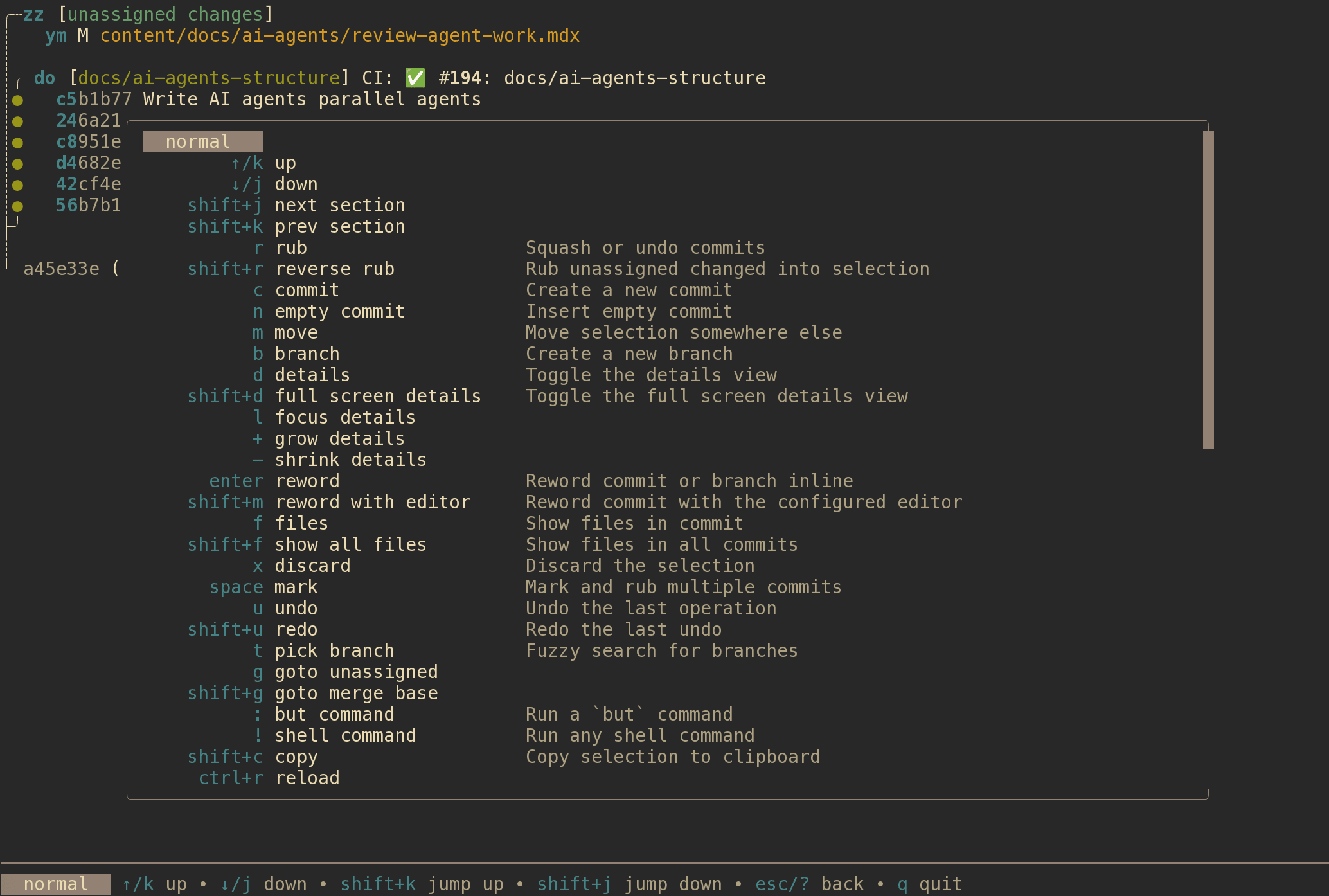
For the complete shortcut list, press ? inside the TUI. The help popup is
generated from the current keybindings, so it is the source of truth.
Move around
Most navigation uses Vim-style keys, with arrow keys where they make sense.
j/kmove down and up.Shift+j/Shift+kjump to the next or previous section.gjumps to uncommitted changes.Shift+gjumps to the common merge base.topens the branch picker.Escbacks out of the current mode.qquits.
The hotbar at the bottom shows the most useful keys for the current mode.
Inspect changes
Select a branch, commit, file, or hunk, then press d to open details. The details pane shows commit metadata and diffs for the selected row.
dtoggles the split details pane.Shift+dtoggles full-screen details.fshows files in the selected commit.Shift+fshows files across all commits.lfocuses the details pane.hreturns focus to the status list.+and-resize the split details pane.- In details mode,
j/kmove between hunks. - In details mode,
Shift+j/Shift+kscroll. - In details mode,
rstarts squash mode from the current uncommitted hunk. - In details mode,
ycopies the current hunk.
Change local history
- Press
cto create a commit from the selected uncommitted changes. Pressiin commit mode to write the message inline,eto leave it empty, orbto commit to a new branch. - Press
nto insert an empty commit. - Press
bto create a branch. - Press
mto move the selected commit or branch, then choose the destination and pressEnter. - Press
rto enter squash mode with the selected source. Choose a target and pressEnter. The target is labeled with the operation GitButler will run:amend,squash, oruncommit. - In squash mode, press
uto keep the target commit message when combining commits. - Press
Spaceto mark multiple commits, then pressrto squash them into another commit. - Press
Enteron a commit or branch to reword it inline. PressShift+mto reword a commit in your configured editor. - Press
xto discard the selected local work. Destructive actions ask for confirmation. - Press
uto undo the last operation andShift+uto redo it.
GitButler records these operations in the operations log, so you can also inspect and recover with but oplog, but undo, and but redo.
Commit selected changes
You do not need to stage changes before committing them. Mark the files or hunks that belong together, then create the commit directly:
- Select an uncommitted file and press
Spaceto mark it. - To select individual hunks, open the file details with
d, focus the details pane withl, and pressSpaceon each hunk you want. - Press
c, choose the target branch or commit position, and pressEnter.
Commit mode opens your configured editor for the message by default. Press i
before confirming to write the message inline, e to leave it empty, or b to
create the commit on a new branch.
Open files in another program
Select an uncommitted or committed file and press o to open it in the default
available program. Press Shift+o to choose a program instead.
You can mark multiple files or hunks before opening them. When multiple items are marked, GitButler opens the containing files rather than individual hunks.
Restore your last selection
Start the TUI with --remember-selection to remember supported selections such
as an uncommitted item, branch, commit, or file when you quit, then restore that
selection the next time you use the same option:
If the saved branch, commit, or file no longer exists, the TUI starts with its normal default selection.
Use command mode
Use command mode when you want the TUI to stay open but need one command.
:runs abutcommand. For example, typebranch listrather thanbut branch list.!runs an external command. It does not run through your shell, so shell syntax like pipes, redirects, built-ins, and&&needssh -c '...'.Ctrl+rreloads the workspace state.
After the command finishes, press Enter to return to the TUI. Successful
commands reload the workspace state. Failed commands return with an error.
Use the diff TUI
but diff --tui opens a smaller TUI focused only on
diffs. It has a file list on the left and a diff pane on the right.
j/kmove through files in the file list.h/l/Tabswitch panes.- In the diff pane,
j/kscroll one line. SpaceorPageDownscrolls down a page.PageUpscrolls up a page.qquits.
You can make but diff use the TUI by default:
Use --no-tui for a one-off plain diff:
Last updated on