Create stacked branches and pull requests
Split dependent work into branches, publish focused reviews, and keep the stack in sync.
Use a stack when one change depends on another but each change still deserves its own review. GitButler keeps every branch in the same workspace and publishes each branch as a focused pull request.
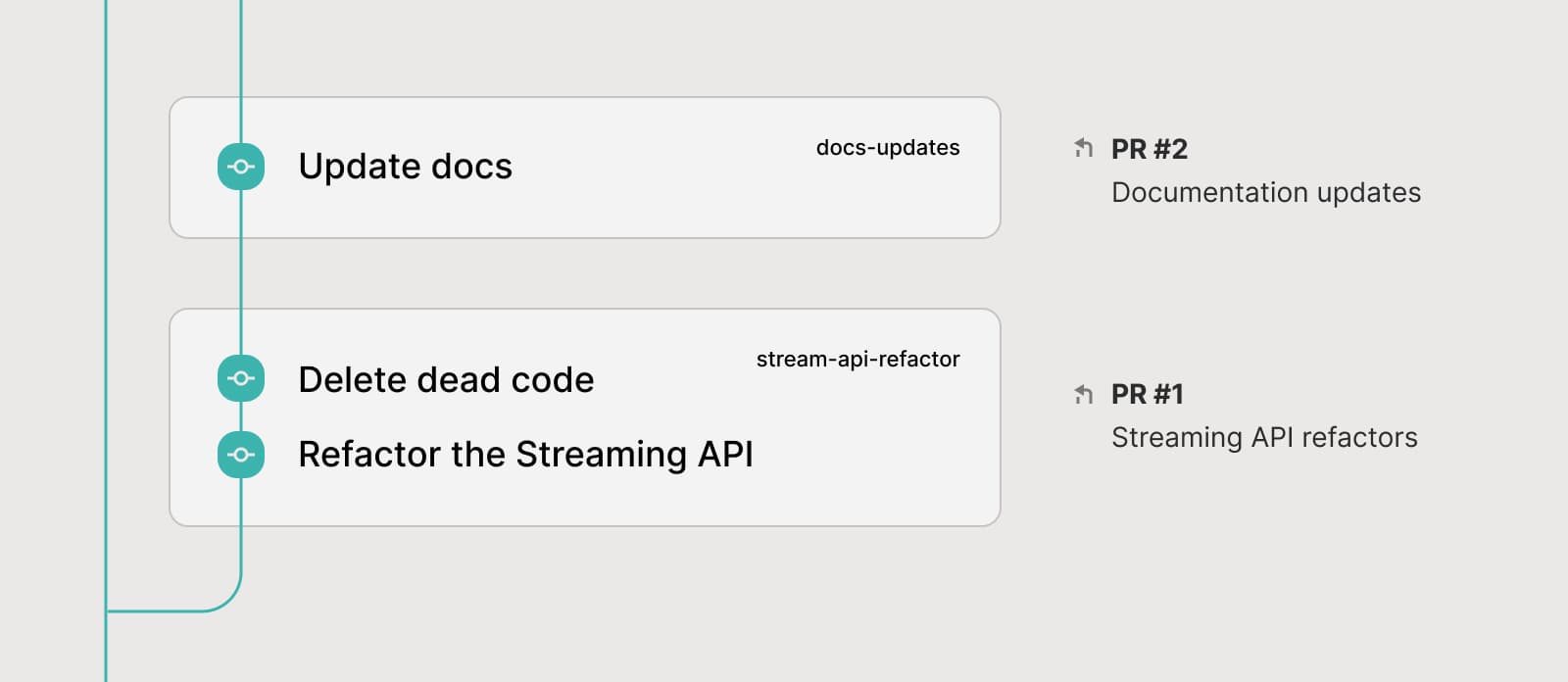
The branch closest to your target branch is the bottom of the stack. Work that depends on it goes above it.
Create a local stack
In GitButler Desktop:
- Create the bottom branch and commit the first reviewable change.
- On that branch, click the Create new branch stack icon.
- Name the dependent branch and commit the next change to it.
- Repeat for each dependent change.
New commits go to the top branch unless you select a different branch first. You can also move existing branches between stacks or drag commits to the branch where they belong.
To stack two existing branches with the CLI, put the dependent branch above its dependency:
Publish the pull request stack
Connect your forge account before publishing. For GitHub, see Connect GitButler to GitHub.
In Desktop, create pull requests from the bottom branch upward. If you try to create one above a lower branch that has no pull request yet, GitButler warns you that the lower pull request provides its review base.
With the CLI, name the top branch to publish missing pull requests for the
whole stack. This example uses -t to accept the default titles and
descriptions without prompting:
GitButler pushes the branches and sets the pull request bases:
- The bottom pull request targets the repository's target branch, usually
main. - Every pull request above it targets the nearest branch below it that also has a pull request.
That keeps each pull request's Files changed view limited to the change being reviewed.
Choose how the stack is published
GitButler publishes stacks as native GitHub stacked pull requests when the repository supports them. Otherwise, it uses ordinary pull requests or merge requests with GitButler-managed stack information in their descriptions.
The default GitHub mode, Auto, uses native stacks when available and falls back otherwise. To require or disable native stacks, see Use native GitHub stacked pull requests.
Update a published stack
Amend commits, move branches, or add another branch as the review changes. When you push again, GitButler updates the review bases to match the local branch order. It also synchronizes the native GitHub stack or the stack information in the review descriptions.
Merge the stack
For a native GitHub stack, use GitHub's stack controls. GitHub can merge a higher pull request together with the pull requests below it.
For description-based stacks, merge from the bottom upward. Enable automatic branch deletion on GitHub so GitHub can retarget the next pull request after its base branch lands.
After merging, update the workspace from the target branch. In the CLI, run:
Last updated on