Connect GitButler to GitHub
Connect GitHub accounts to create pull requests and keep branch stacks in sync from GitButler.
Connect GitButler to a GitHub account to create and manage pull requests without leaving the app.
You can connect multiple GitHub accounts and choose which one each project uses.
Connect a GitHub account
Open GitButler settings from the profile button in the sidebar. Go to Integrations, then click Add account for GitHub.
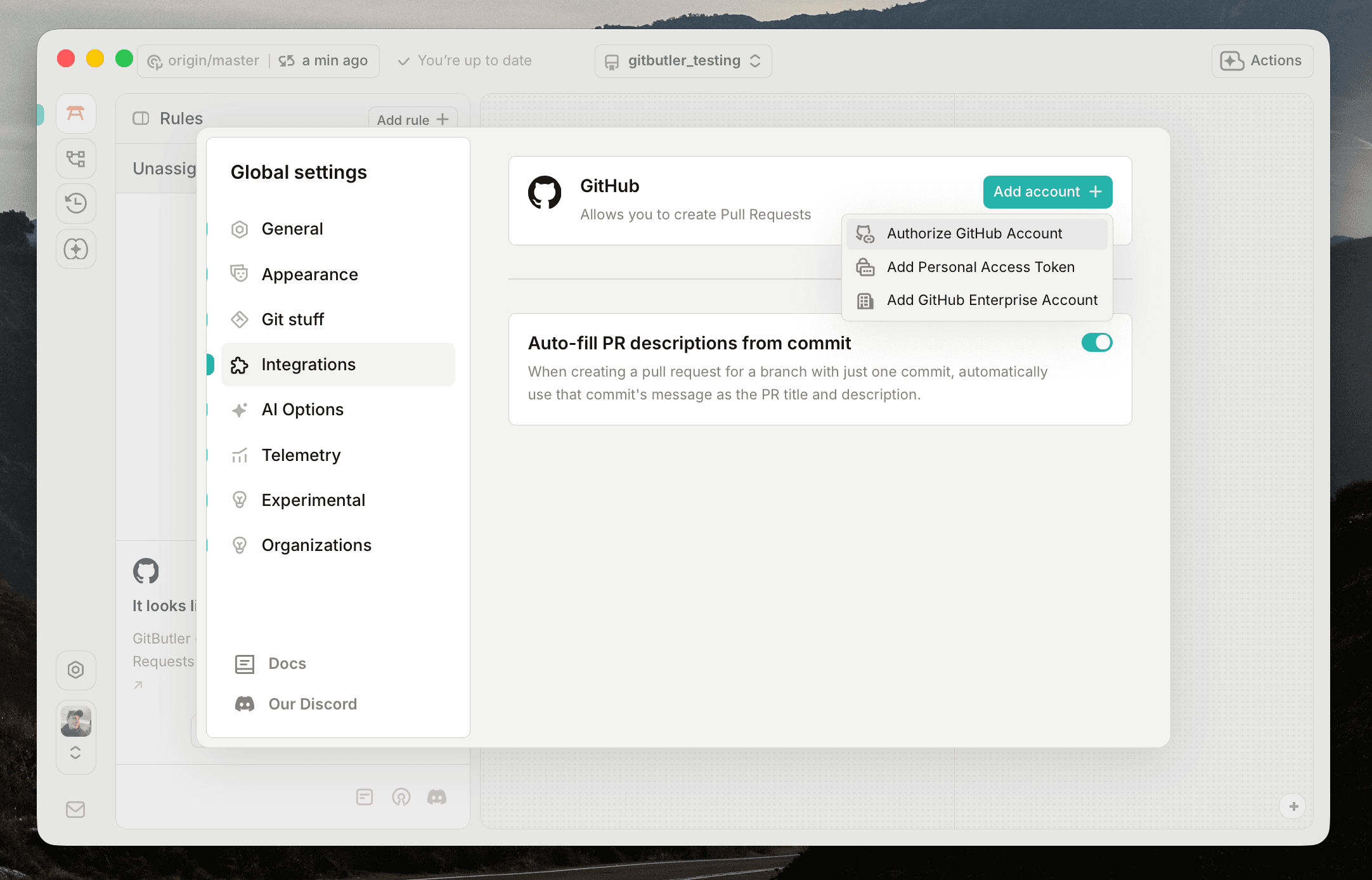
You can add an account three ways:
- Device Flow generates a code and opens GitHub in your browser for authorization. This is the recommended option for most users.
- Personal Access Token connects an account with a token you create on GitHub.
- GitHub Enterprise connects to an Enterprise instance with its API URL and a personal access token.
We'll select the Device Flow option for this example.
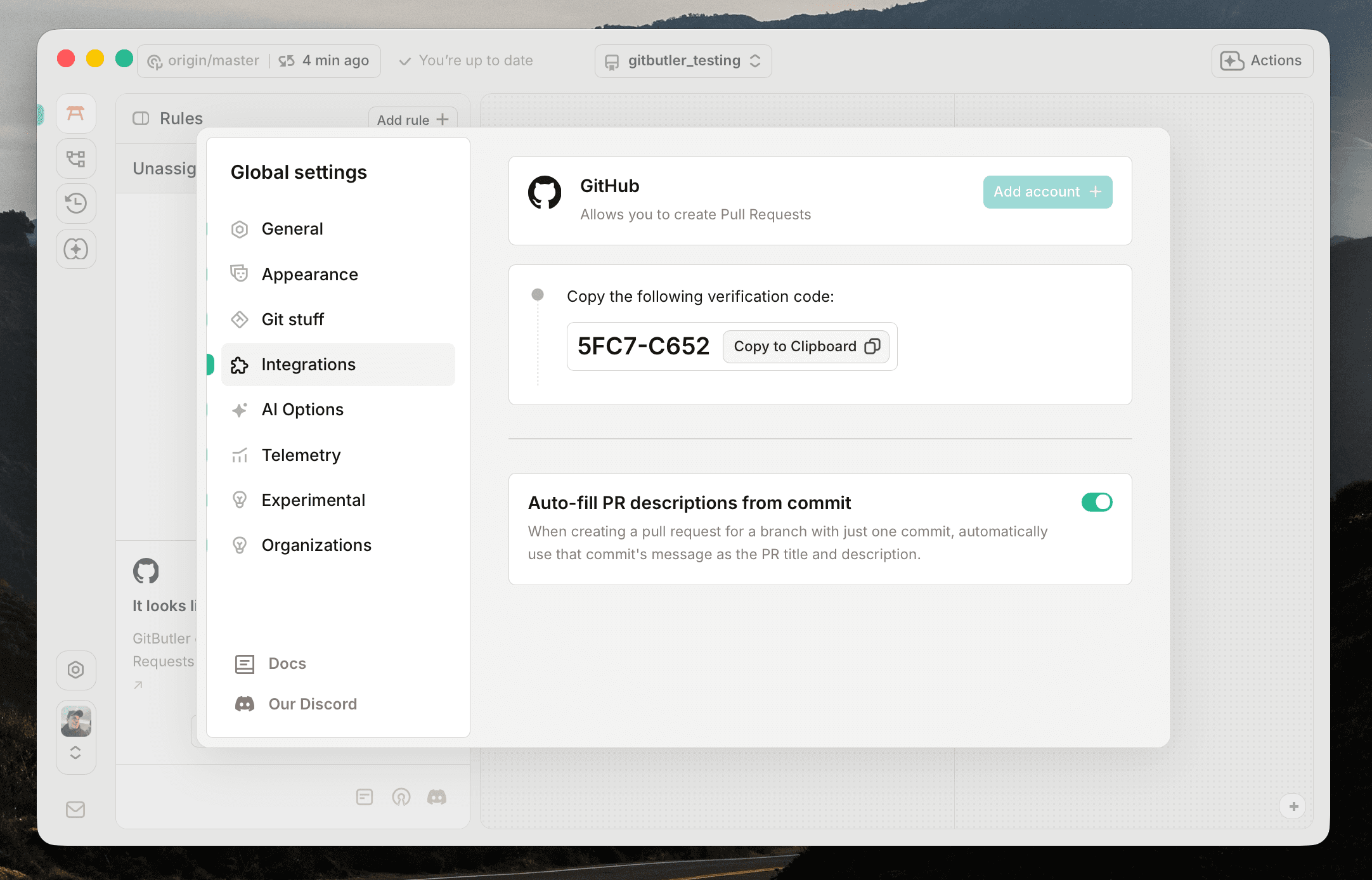
A code will be generated for you. Copy it to your clipboard.
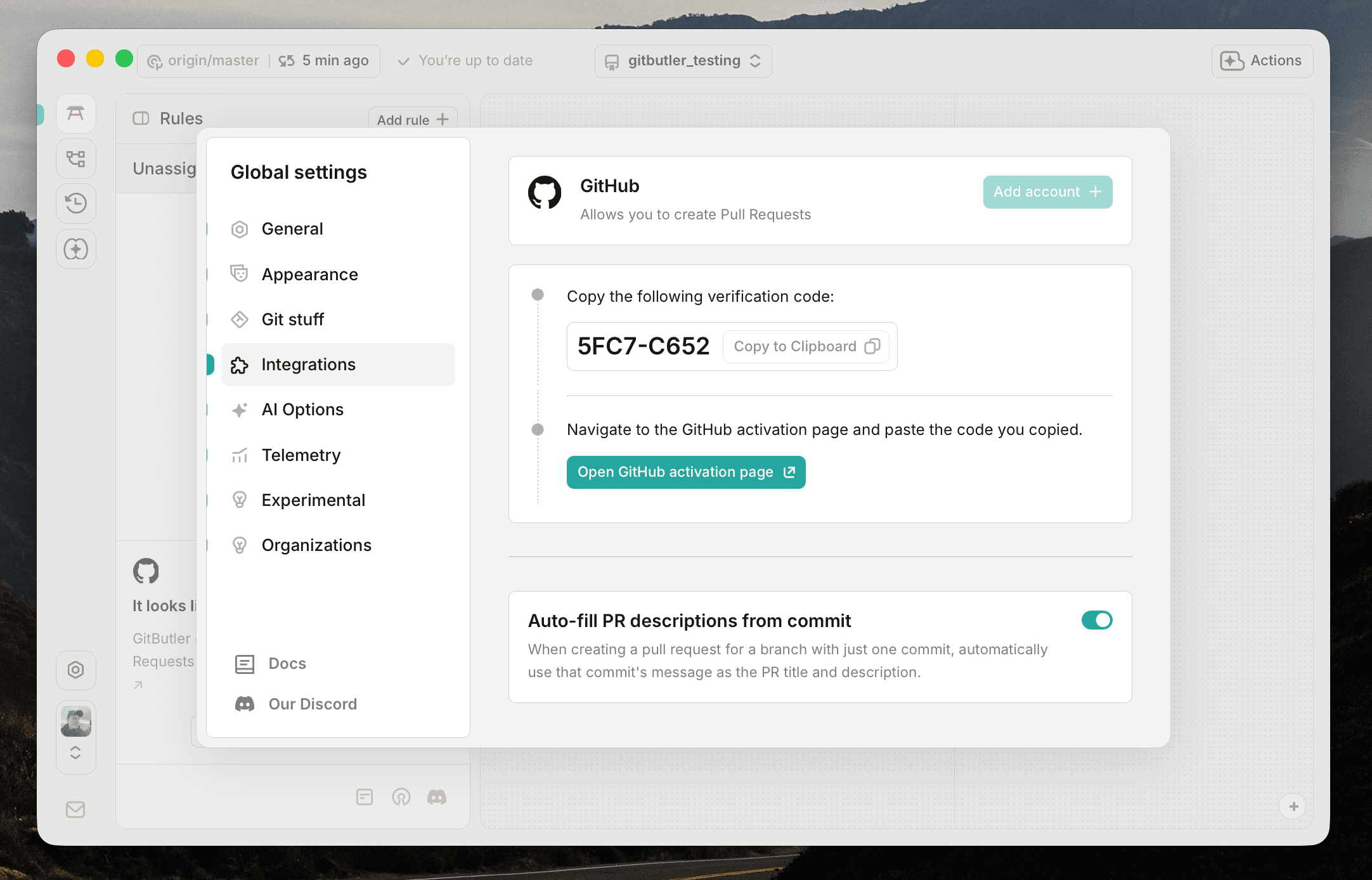
Click Open GitHub activation page to continue in your browser.
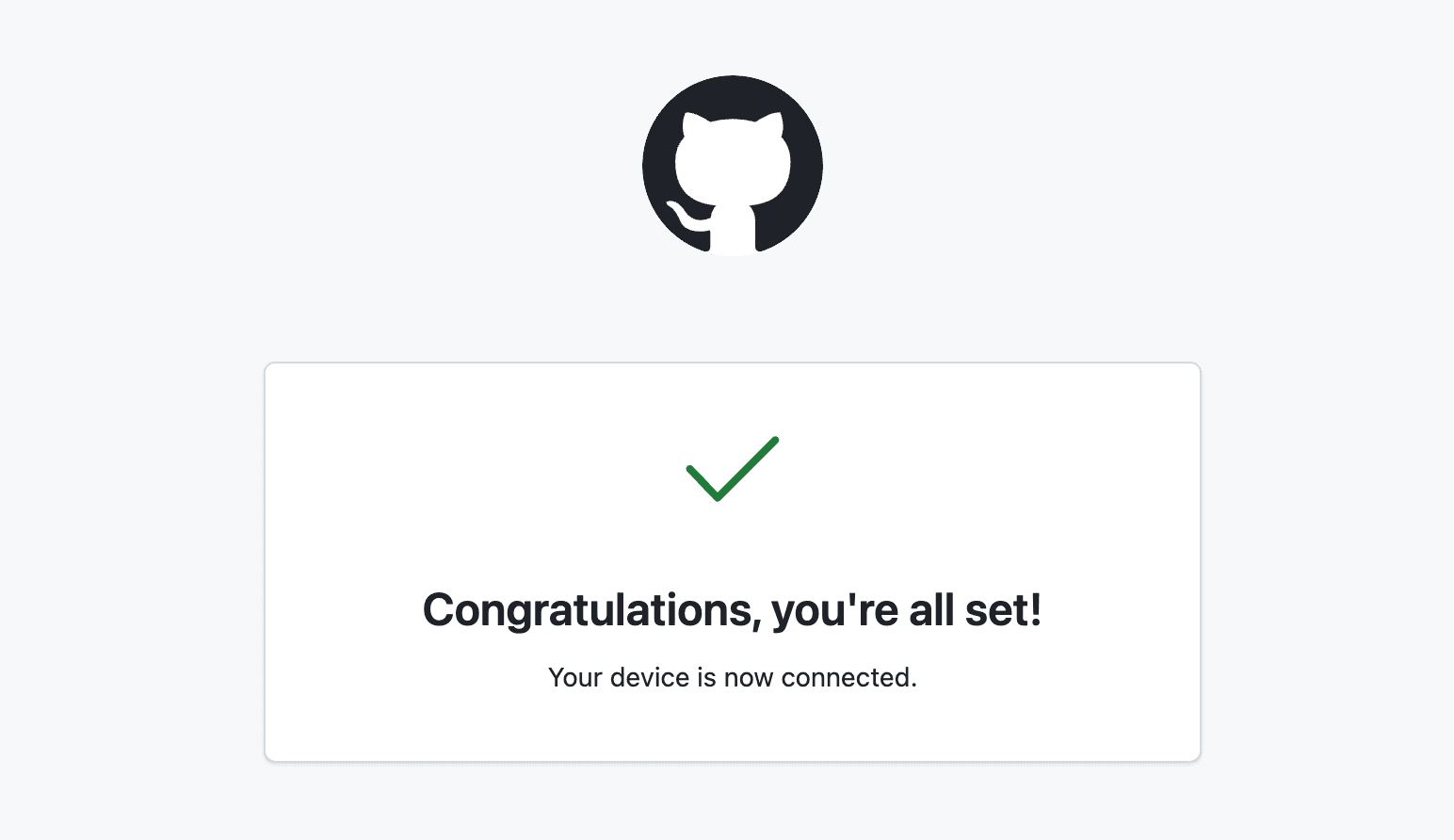
Paste the code into GitHub and approve the authorization request.
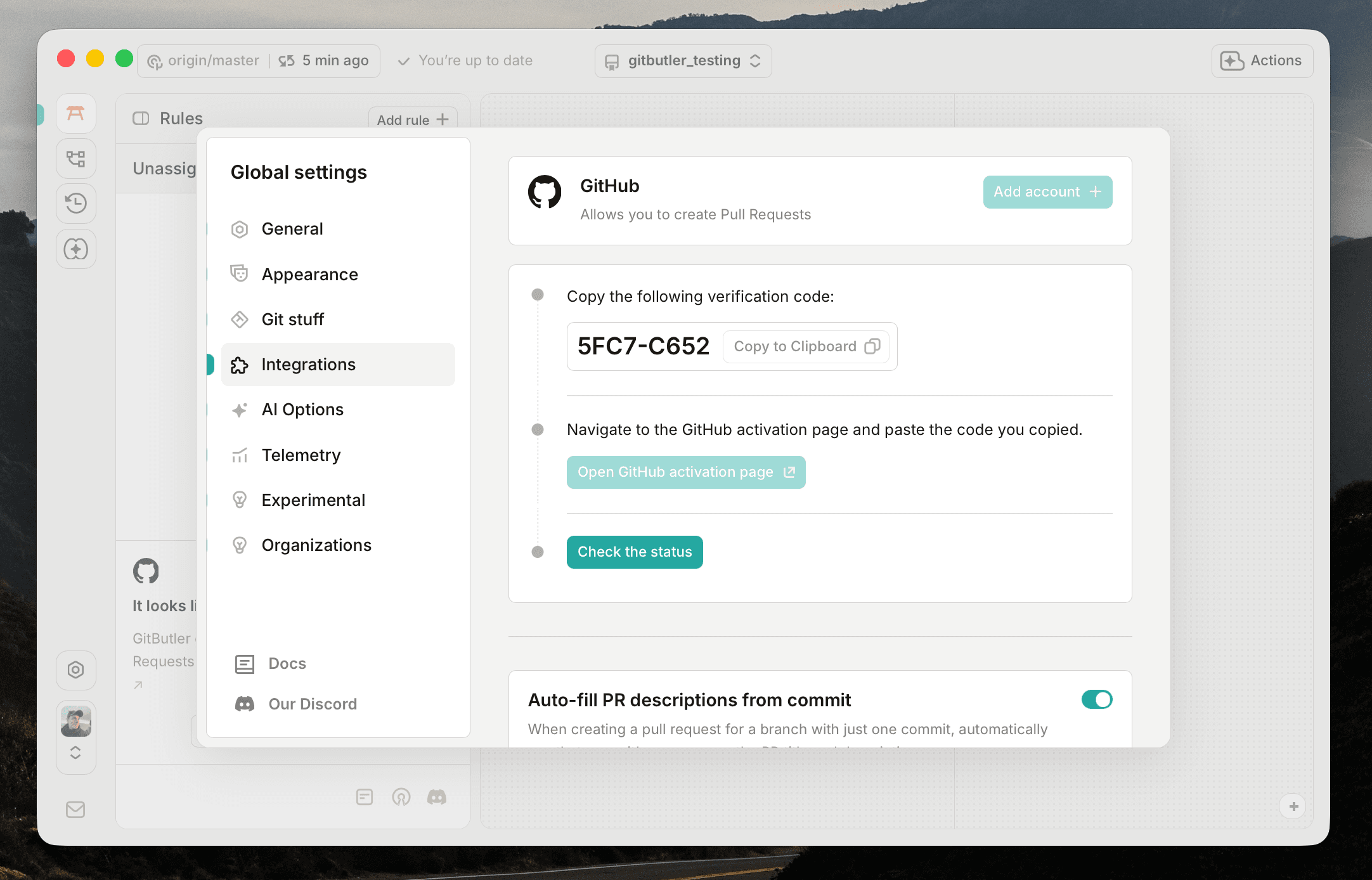
Return to GitButler and click Check the status. Your GitHub username appears in the Integrations tab after the account connects.
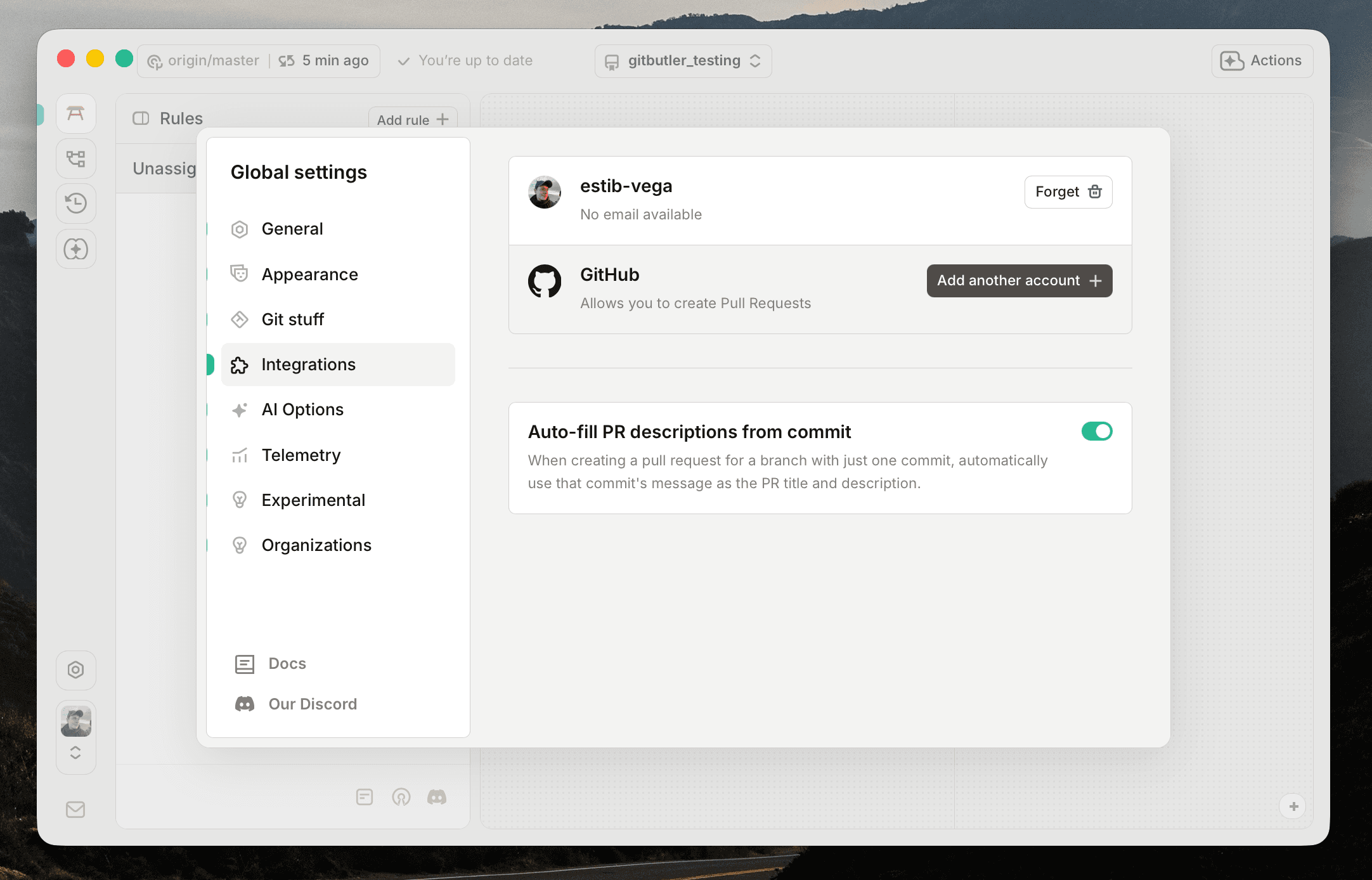
To disconnect an account, click Forget next to its name.
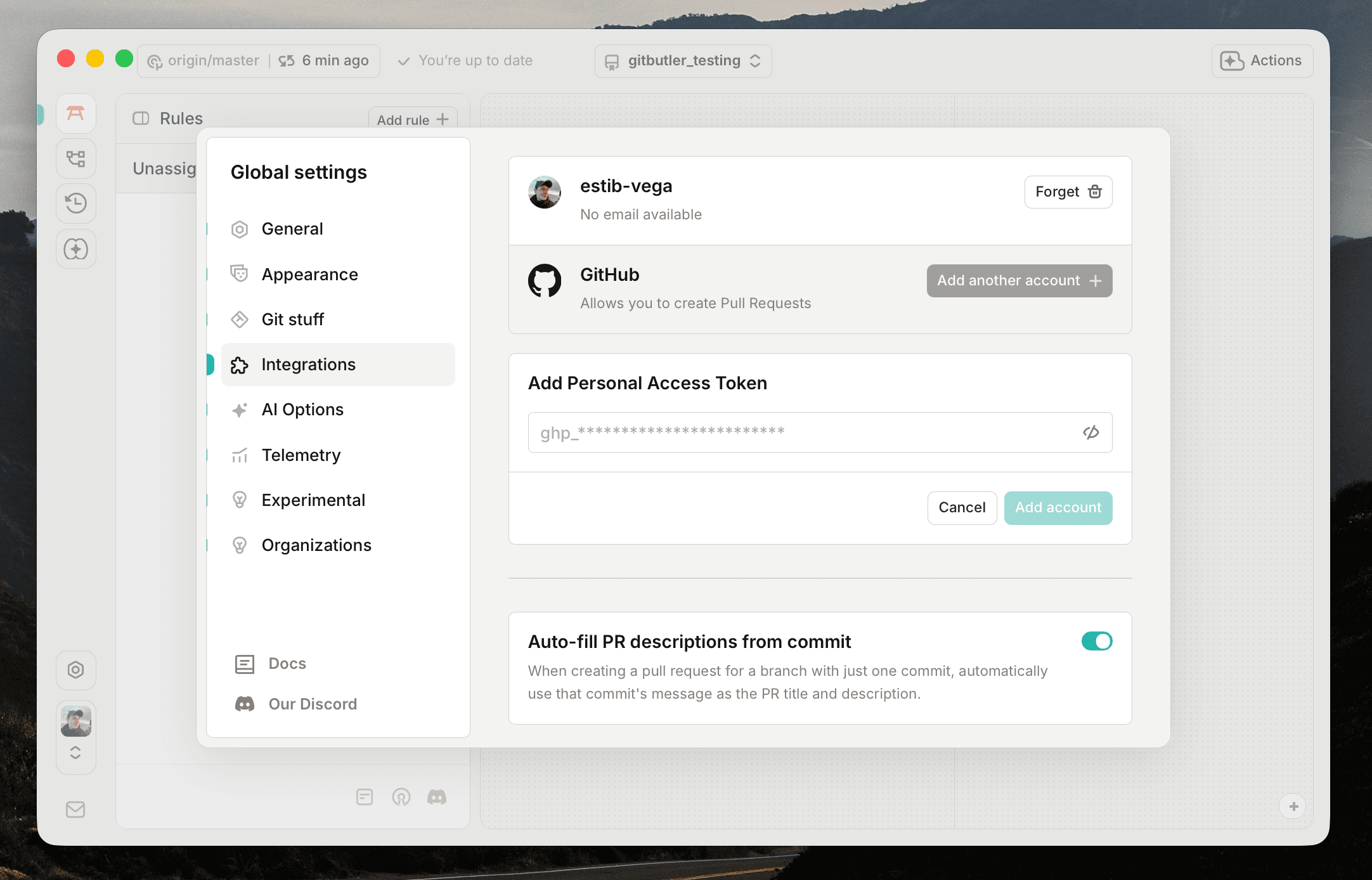
To connect with a personal access token, select Personal Access Token when adding the account. GitButler needs read access to Metadata and read and write access to Pull Requests. These requirements may change as GitButler adds GitHub features.
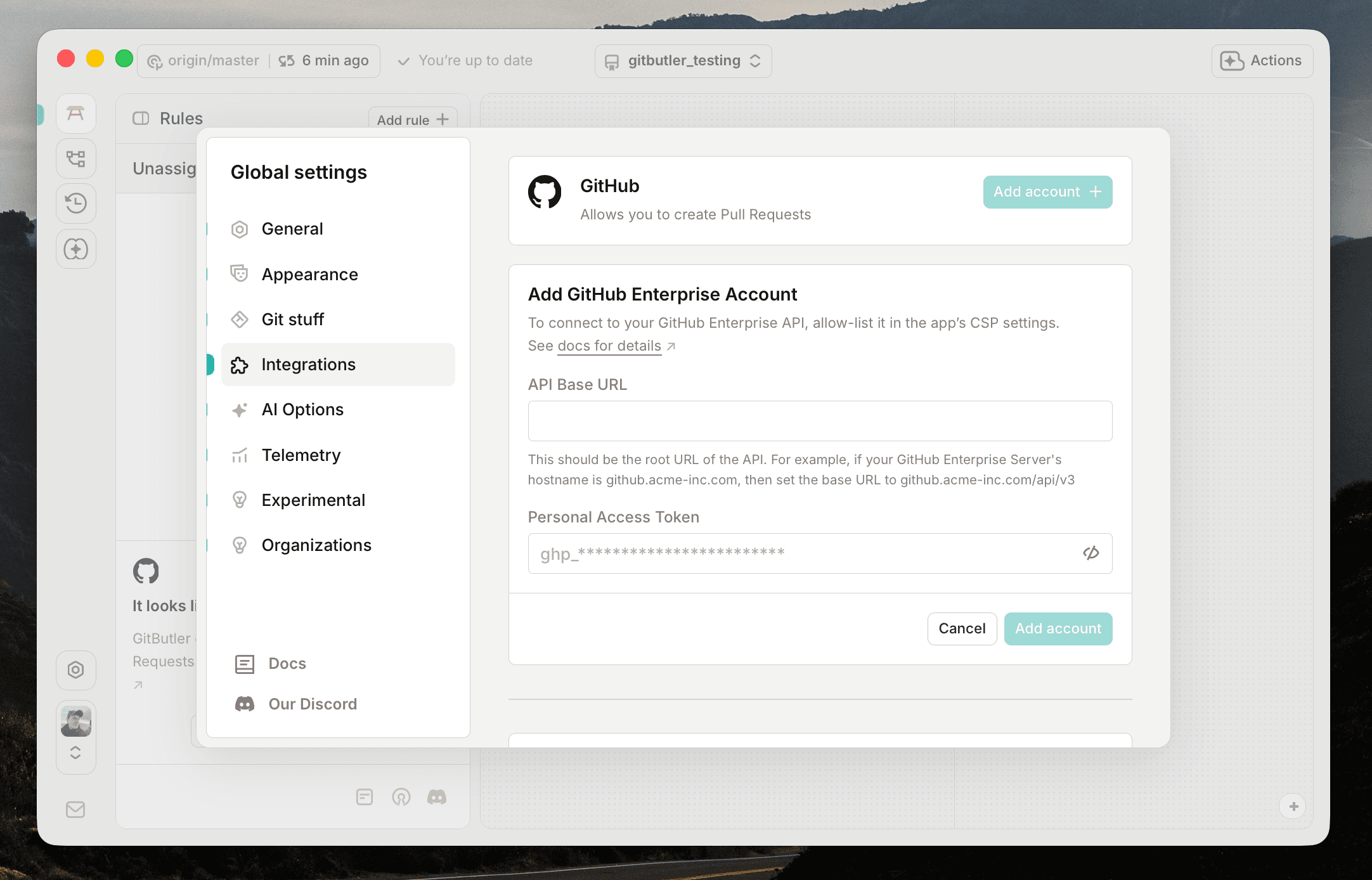
For GitHub Enterprise, select GitHub Enterprise and enter the instance's API base URL and a personal access token with the same permissions.
For example, if your GitHub Enterprise Server's hostname is github.a-super-serious-company.com, then set the base URL to github.a-super-serious-company.com/api/v3.
See GitHub's Octokit base URL documentation for more information.
Create and manage pull requests
After connecting GitHub, create a pull request from its GitButler branch.
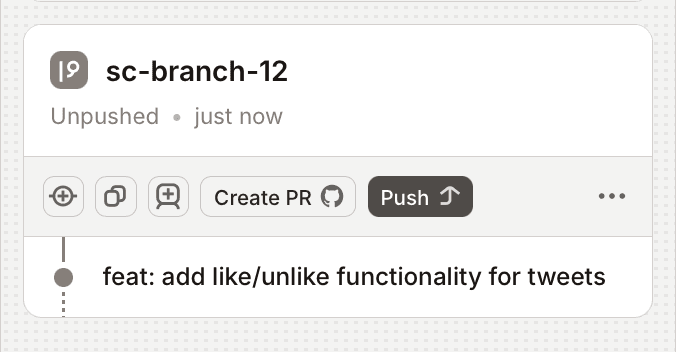
GitButler checks whether each branch has an associated pull request. You can view those pull requests from the Pull Requests section of the Branches page.
Use native GitHub stacked pull requests
GitButler uses native GitHub stacked pull requests when:
- The repository is enrolled in GitHub's stacked pull requests private preview.
- The pull requests use branches in the same repository, not a fork.
- The project has not disabled native stacks.
The default mode is Auto. GitButler detects whether the repository supports native stacks and registers stacks containing at least two open pull requests. GitHub renders the stack, so GitButler does not add stack information to the pull request descriptions.
If the repository is not enrolled, Auto falls back to ordinary pull requests with GitButler-managed stack information in their descriptions. Fork-backed pull requests always use this fallback.
Change the mode under Project settings → Project → Native GitHub stacked pull requests:
- Auto uses native stacks when available and falls back otherwise.
- Native requires native stack support and reports an error when the repository is not enrolled.
- Disabled always uses description-based stack information.
The Stack information in review descriptions setting controls whether fallback information appears at the top, bottom, or not at all. It does not affect native stacks.
The same project-local setting is available in the CLI:
The CLI values map to Desktop as follows:
autoselects Auto.enableselects Native.disableselects Disabled.
Changes take effect on the next push or pull request creation. GitButler then updates the pull request bases and either the native stack membership or the fallback descriptions.
See Create stacked branches and pull requests for the publishing workflow.
Last updated on